
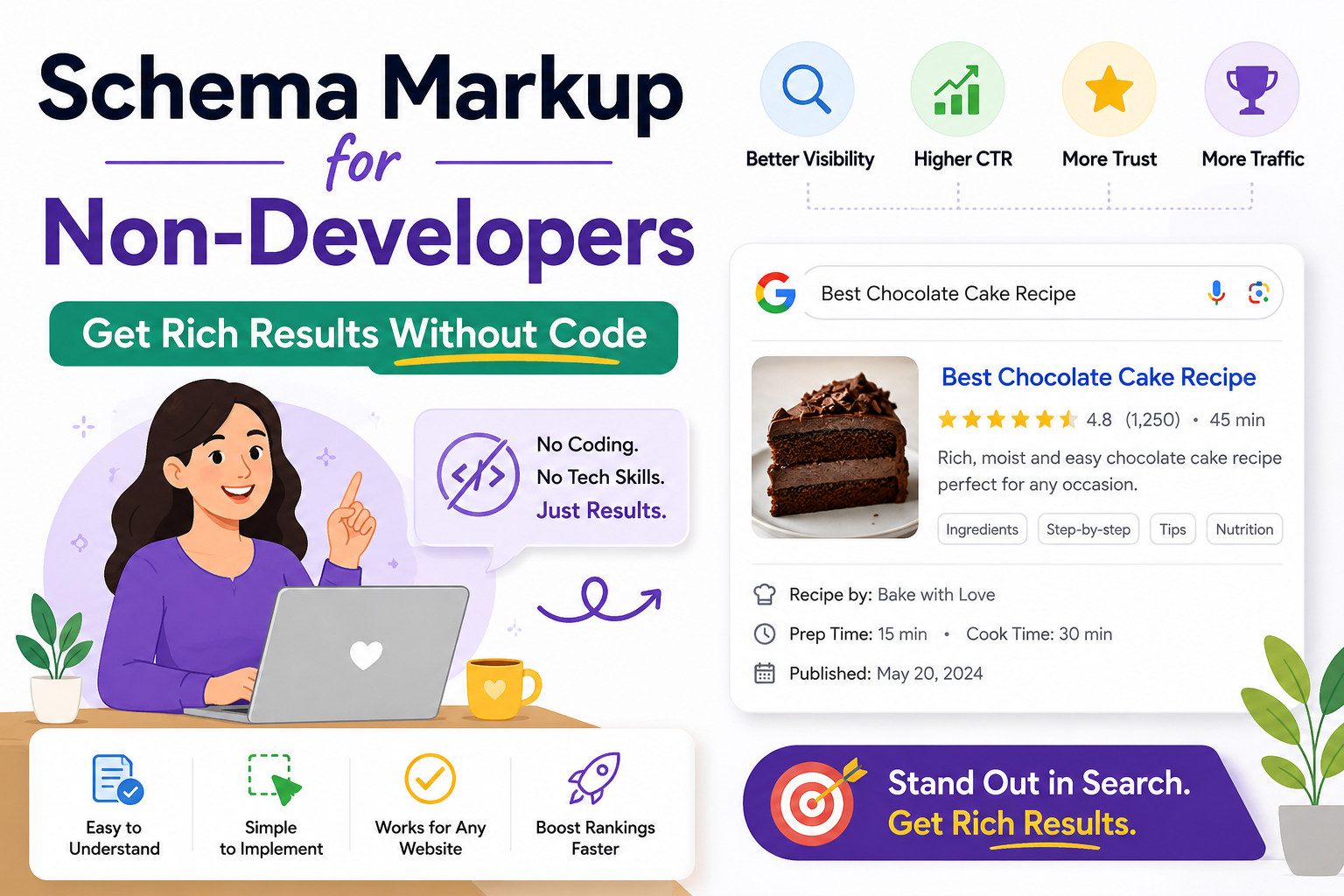
Schema Markup for Non-Developers: Get Rich Results Without Code
Star ratings, FAQ dropdowns, and rich results — all without touching a single line of code. The practical guide every blogger and indie founder actually needs.
You have probably seen search results with star ratings, FAQ dropdowns, and recipe cards sitting right in Google — taking up twice the space of a normal result and getting far more clicks. That is schema markup at work. And despite what most technical SEO guides imply, you do not need a developer to implement it.
This guide explains exactly what schema markup is, which types actually matter for your site, and how to add them to WordPress in under an hour without writing a single line of code. Every step is tested on real sites — including this one.
What Schema Markup Actually Is (And What It Is Not)
Schema markup — also called structured data — is invisible code added to your webpage that tells search engines what your content means, not just what it says. It uses a standardised vocabulary maintained at Schema.org and is typically written in a format called JSON-LD, which Google strongly recommends.
Think of your website as something humans read. Schema markup is the label machines read. When you publish a blog post, Google sees words. When you add Article schema, Google sees: this is an article, written by this author, published on this date, about this topic. That clarity unlocks richer search appearances.
Schema markup does not directly move your page from position 8 to position 3. What it does is change how your existing position displays — adding star ratings, FAQ dropdowns, or breadcrumbs that take up more visual space and generate significantly more clicks from the same ranking.
Here is the difference between a page without schema and one with it — both ranking in the same position:
Same position. Dramatically different click-through rate. That is the entire case for schema markup.
Why Schema Matters Even More in 2026
Schema markup has always been useful. In 2026 it has become critical for two reasons that did not exist three years ago.
First, AI search is now mainstream. Google’s AI Overviews, ChatGPT search, and Perplexity all use structured data to decide which pages to cite in AI-generated answers. Pages with valid schema are dramatically more likely to appear in these AI summaries than pages without it.
Second, competition for attention in search results has intensified. With AI Overviews taking up the top of the page, organic results are pushed further down. Rich results — which only appear for pages with valid schema — are how you stand out in the remaining space.
Fewer than 30% of websites use schema markup correctly. That means if you implement it properly — even on a new site — you immediately have a SERP appearance advantage over the majority of your competitors who have never touched structured data.
The 6 Schema Types That Actually Matter for Bloggers
There are hundreds of schema types. Most of them will never affect how your site appears in search. These six are the ones that consistently produce visible rich results for content sites, blogs, and tool pages.
If you do nothing else, add Organization + Article schema to your site today. These two alone cover your entire blog and establish your brand entity — the foundation everything else builds on.
Method 1 — WordPress Plugin (Fastest, Zero Code)
If your site runs on WordPress, this is the method to use. Both Rank Math and Yoast SEO handle the most important schema types automatically the moment you install them — no configuration required for Article and Organization schema.
| Plugin | Auto schema | FAQ schema | Custom schema | Free? |
|---|---|---|---|---|
| Rank Math | ✓ Article, Organization, Breadcrumb | ✓ Built-in block | ✓ Schema generator | ✓ Free |
| Yoast SEO | ✓ Article, Organization, Breadcrumb | ✓ Free block | ✗ Premium only | ✓ Free |
| Schema Pro | ✓ All types | ✓ | ✓ All types | ✗ Paid |
Setting Up Rank Math Schema (Step by Step)
Go to WordPress → Plugins → Add New → search “Rank Math SEO” → Install and Activate. The setup wizard runs automatically.
During setup, Rank Math asks for your site type (blog, business, etc.) and your organization name and logo. Fill these in carefully — this generates your Organization schema sitewide automatically. Article schema is also applied to all posts automatically.
Open any blog post in the WordPress editor. In the Rank Math sidebar on the right, click Schema tab → Add Schema → select FAQ. Add your questions and answers. Rank Math generates the JSON-LD automatically and injects it into the page.
Go to search.google.com/test/rich-results → paste your page URL → click Test. Google shows you every schema type it detected and whether each one is valid. Fix any errors before moving on.
Method 2 — Free Schema Generator Tools (No Plugin Needed)
If you are not on WordPress, or want more control than a plugin provides, use a free schema generator tool. These tools give you a form to fill in — you fill in the details, they generate the JSON-LD code, and you paste it into your page’s head section.
How to Use a Schema Generator (Step by Step)
Select the schema type you need from the dropdown. Start with Article for blog posts or FAQPage for pages with questions and answers.
For Article schema: enter your headline, author name, publish date (in YYYY-MM-DD format), and featured image URL. For FAQ schema: enter each question and its full answer exactly as it appears on your page.
The content in your schema must exactly match what is visible on your page. If your FAQ schema lists five questions but only three appear on the page, Google treats this as deceptive markup and may issue a manual penalty.
The tool generates code that looks like this — you do not need to understand it, just copy it exactly:
<script type="application/ld+json">
{
  "@context": "https://schema.org",
  "@type": "Article",
  "headline": "Schema Markup for Non-Developers",
  "author": {
    "@type": "Organization",
    "name": "Rank Growth Lab",
    "url": "https://rankgrowthlab.com"
  },
  "datePublished": "2026-05-17",
  "dateModified": "2026-05-17",
  "publisher": {
    "@type": "Organization",
    "name": "Rank Growth Lab",
    "logo": {
      "@type": "ImageObject",
      "url": "https://rankgrowthlab.com/logo.png"
    }
  }
}
</script>
In WordPress without a plugin: go to Appearance → Theme Editor → header.php and paste just before the closing </head> tag. Or use a plugin like Insert Headers and Footers to add it safely without editing theme files directly.
Paste your page URL and confirm Google detects the schema correctly. Fix any errors shown. Then submit the URL for re-indexing in Google Search Console so Google processes the new markup quickly.
Adding FAQ Schema — The Highest CTR Boost Available
FAQ schema is the single most impactful schema type for content sites. When Google shows it, your search result expands to include two to four expandable questions directly in the SERP — doubling or tripling the vertical space your result occupies and dramatically increasing click-through rate.
The rules are simple but strictly enforced:
-
Every question in your schema must be visibly present on the page — not hidden in code
-
Answers must match what appears on the page word for word
-
Use genuine questions your audience actually asks — not made-up ones
-
Google recommends 3 to 5 questions maximum per page
-
Do not use FAQ schema for commercial or promotional content — Google will ignore it
FAQ Schema Example — Ready to Copy
<script type="application/ld+json">
{
  "@context": "https://schema.org",
  "@type": "FAQPage",
  "mainEntity": [
    {
      "@type": "Question",
      "name": "Does schema markup directly improve Google rankings?",
      "acceptedAnswer": {
        "@type": "Answer",
        "text": "Schema markup does not directly move your rankings.
It changes how your existing ranking position displays —
adding rich results like star ratings and FAQ dropdowns
that increase click-through rate from the same position."
      }
    },
    {
      "@type": "Question",
      "name": "How long does it take for schema to appear in search results?",
      "acceptedAnswer": {
        "@type": "Answer",
        "text": "After adding valid schema, Google typically takes
a few days to several weeks to process it and begin
showing rich results. Submit your URL in Google Search
Console to speed up crawling."
      }
    }
  ]
}
</script>
The 3 Mistakes That Prevent Rich Results From Appearing
Schema markup errors are silent. Your page loads normally, visitors see nothing wrong — but Google’s rich results never appear. These three mistakes cause the majority of failed schema implementations.
If your FAQ schema lists questions that don’t appear on the page, or your Article schema has a different headline than your H1, Google treats this as deceptive markup. The rich results are suppressed and you may receive a manual action. Always match schema content exactly to visible page content.
Schema dates must use ISO 8601 format: 2026-05-17 for dates, 2026-05-17T09:30:00+05:30 for date-times with timezone. Writing “May 17, 2026” or “17/05/2026” makes the entire schema block invalid. Generators handle this automatically — manual writers frequently get it wrong.
A single missing comma, unclosed quote, or extra bracket breaks the entire JSON object. Google’s validator shows the exact line with the error. If you are copying generated code, paste it into a JSON validator (jsonlint.com) before adding it to your site. Plugins eliminate this risk entirely since they generate valid JSON automatically.
How to Check If Your Schema Is Working
Once you have added schema, check it immediately and again after two weeks. Here is the exact validation workflow:
Go to search.google.com/test/rich-results → enter your page URL → click Test URL. Google shows every schema type detected and marks each property as valid or errored. Fix all errors before moving on — warnings are acceptable, errors are not.
Go to Google Search Console → URL Inspection → paste your page URL → click Request Indexing. This tells Google to re-crawl the page immediately and process the new schema markup. Without this, you might wait weeks for the next natural crawl.
Go to Search Console → Enhancements in the left sidebar. You will see reports for each schema type — FAQs, Articles, Breadcrumbs. Any errors or warnings appear here. This is your ongoing monitoring dashboard for structured data health.
After rich results appear, go to Search Console → Performance and check your CTR for the pages with schema. A successful FAQ schema implementation typically increases CTR by 15 to 40% within 30 days. If CTR does not improve, Google may have decided not to show the rich result for your queries — which happens and is not something you can force.
Schema Markup and AI Search — Why It Matters More Than Ever
In 2026, schema markup has a second job that did not exist when most schema guides were written. Beyond Google rich results, structured data is now one of the primary signals that AI search systems — Google’s AI Overviews, ChatGPT search, Perplexity — use to decide which pages to cite in AI-generated answers.
The data is unambiguous. Research published in early 2026 found that 82.5% of Google AI Overview citations come from pages with structured data, and pages with schema are 3.7 times more likely to be cited by ChatGPT and Gemini than pages without it.
Adding Article schema to every blog post and Organization schema to your site is no longer just an SEO tactic — it is the minimum requirement for your content to be considered by AI systems when they generate answers. Without it, your pages are effectively invisible to AI-powered search, regardless of how good the content is.
Your Schema Implementation Checklist
Follow this order for the fastest visible impact. Each item builds on the previous one.
-
Install Rank Math or Yoast SEO — auto-applies Article + Organization + Breadcrumb schema sitewide immediately
-
Complete the plugin setup wizard — enter your organization name, logo URL, and social profiles accurately
-
Add a FAQ section to your top 3 articles — with 3 to 5 real questions your audience asks
-
Add FAQ schema to those articles using Rank Math’s schema block or a generator tool
-
Validate every page at Google’s Rich Results Test before and after adding schema
-
Request indexing in Search Console for every page you add schema to
-
Check Enhancements report in Search Console after 2 weeks for errors and warnings
-
Monitor CTR changes in the Performance report — expect 15 to 40% improvement on pages with FAQ schema
What to Do Next
If you are on WordPress: Install Rank Math today. The setup wizard takes 10 minutes and automatically adds Organization, Article, and Breadcrumb schema sitewide. Then add FAQ sections and FAQ schema to your three highest-traffic posts this week.
If you are not on WordPress: Go to TechnicalSEO.com/tools/schema-markup-generator, generate Article schema for your most important page, paste it into your head section, and validate it. Then work through the checklist above one item at a time.
To generate clean meta tags alongside your schema — including Open Graph and Twitter Card tags — use the free Meta Tag Generator — it generates JSON-LD schema alongside every other tag your page needs, with no account required.
Schema markup is one of the highest-return, lowest-effort SEO tasks available to a site owner. You do it once per page, it works indefinitely, and it makes every piece of content you have already published more visible — in both traditional search and AI-powered answers. The only wrong move is waiting.
Schema Markup — Common Questions Answered
Beginner-friendly answers about schema markup, rich results, and AI search visibility.
Schema markup does not directly boost rankings, but it can dramatically improve click-through rate (CTR) by enhancing how your result appears in Google.
Rich results like FAQ dropdowns, breadcrumbs, and star ratings attract more attention and clicks from the same ranking position.
Google may take anywhere from a few days to several weeks to process new structured data and show rich results.
You can speed up discovery by submitting the page through Google Search Console and requesting indexing.
Yes — structured data is becoming increasingly important for AI search visibility, including Google AI Overviews and AI assistants.
Adding Article, FAQ, and Organization schema helps machines better understand and trust your content.
Absolutely. Free schema generators create ready-to-use JSON-LD code that you can copy and paste into your website without coding knowledge.
Plugins simply automate the process and make it easier for beginners to manage structured data.
Schema errors usually do not damage rankings directly, but they can prevent rich results from appearing in Google search.
Always validate your structured data using Google’s Rich Results Test before publishing.