
Core Web Vitals in 2026: What Actually Matters and How to Fix It
LCP, INP, and CLS — explained without jargon, fixed without a developer. The practical guide to passing Google’s page experience signals in 2026 and keeping them green.
Core Web Vitals have been a confirmed Google ranking factor since 2021. Yet in 2026, the majority of websites still fail at least one of the three metrics. The reason is not that the fixes are complicated — most are not. The reason is that most site owners either do not know which specific thing is causing their score to fail, or they follow generic advice that does not apply to their particular setup.
This guide changes that. It explains exactly what each Core Web Vital measures, what the 2026 thresholds are, what specifically causes failures, and what fixes to implement in order of impact. Every fix in this guide has been tested on real sites. Nothing here is theoretical.
What Core Web Vitals Actually Are — and Why They Matter
Core Web Vitals are three specific, measurable signals that Google uses to evaluate page experience — how a page feels to a real user loading it on a real device. Unlike most SEO metrics, they are not abstract scores or opinions. They measure three things that users genuinely notice: how fast the main content appears, how quickly the page responds to interaction, and whether the layout jumps around while loading.
Google has been explicit that Core Web Vitals are a ranking factor, not just a recommendation. Pages that pass all three metrics get a ranking boost in competitive situations — when two pages are otherwise roughly equal in relevance and authority, the one with better page experience scores wins. For new or growing sites, this tie-breaker matters significantly.
More practically: pages that fail Core Web Vitals frustrate visitors. A page that takes four seconds to show its main content, freezes when you tap a button, or shifts its text while images load drives users away — and high bounce rates send negative engagement signals that affect rankings independently of the Core Web Vitals score itself. Fixing Core Web Vitals improves both rankings and user experience simultaneously.
The Three Core Web Vitals in 2026
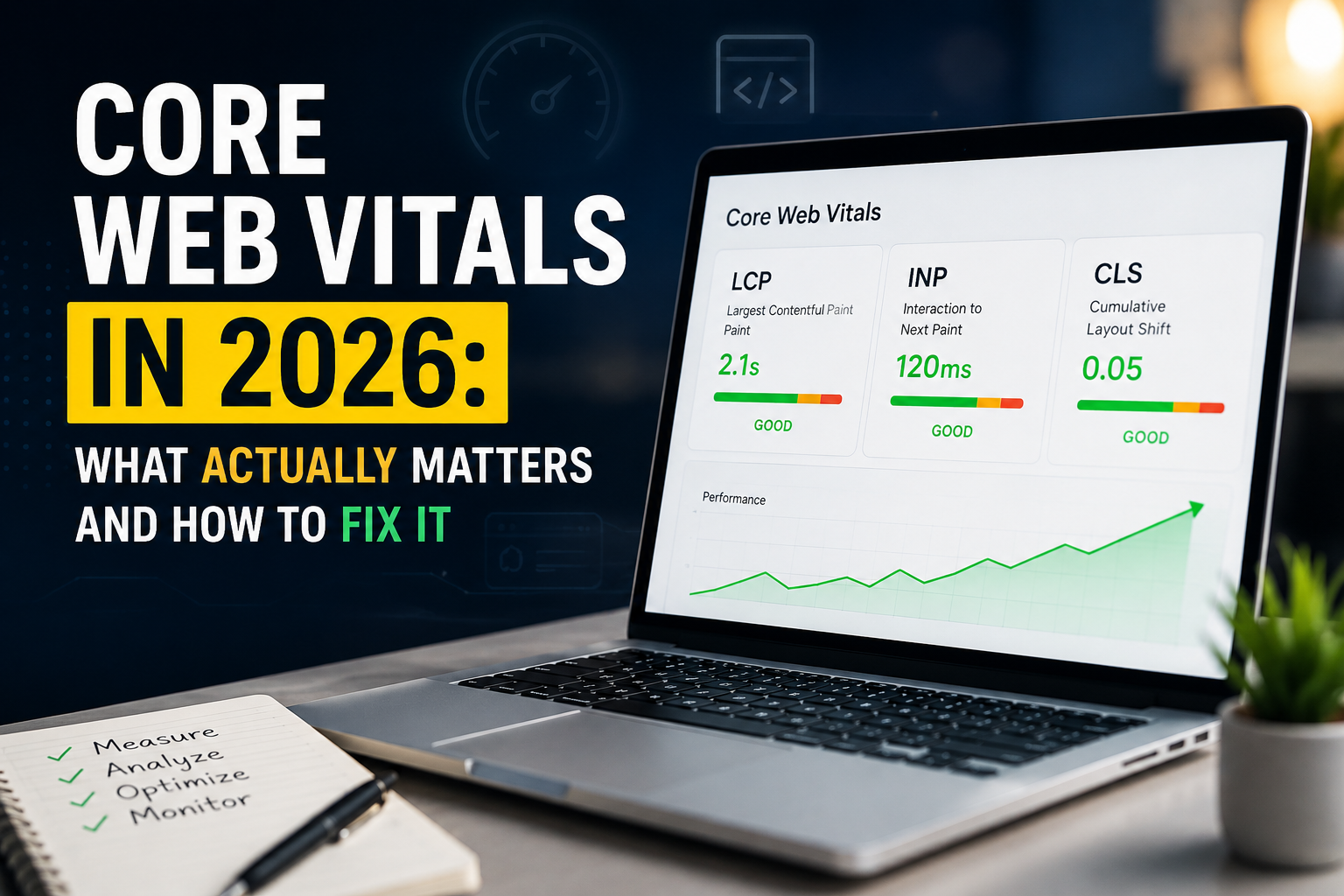
In 2026 there are three Core Web Vitals. FID (First Input Delay) was retired in March 2024 and replaced by INP (Interaction to Next Paint). Many older articles still reference FID — ignore that advice. The three current metrics are LCP, INP, and CLS.
LCP — What Causes It and How to Fix It
LCP is the most commonly failed Core Web Vital and has the most direct impact on rankings. A poor LCP score almost always comes down to one of four causes: a slow server response time, a large unoptimised image that is the LCP element, render-blocking resources that delay content from appearing, or the LCP image not being prioritised correctly in the loading sequence.
If your LCP element is an image (which it is for most sites), three things determine how fast it loads: file format, file size, and whether the browser is told to prioritise it.
Format: Convert all hero and above-the-fold images to WebP. WebP files are 25–35% smaller than JPEG at equivalent quality. On WordPress, plugins like ShortPixel or Imagify handle this automatically. For other platforms, convert images at squoosh.app before uploading.
Size: Never upload a 3000px wide image for a container that displays at 800px. Resize to the actual display dimensions before uploading. A 800×450px WebP image for a hero banner should be under 80KB.
Priority: Add fetchpriority="high" to your LCP image tag. This tells the browser to download it before other images. This single attribute can reduce LCP by 0.3–0.8 seconds on its own.
Render-blocking resources are CSS or JavaScript files that the browser must download and process before it can show anything on screen. Every render-blocking resource adds time before your LCP element can appear.
For CSS: Any CSS in the <head> is render-blocking by default. Critical CSS (the styles needed for above-the-fold content) should be inlined directly in the <head>. Non-critical CSS should be deferred using media="print" onload="this.media='all'".
For JavaScript: Add defer or async to all script tags that are not critical for initial render. Most third-party scripts (analytics, chat widgets, social embeds) should be loaded after the main content is visible.
A Content Delivery Network (CDN) serves your static assets (images, CSS, JS) from servers physically close to your visitors, dramatically reducing transfer time. Cloudflare’s free plan is the fastest way to implement this on any site — it takes about 20 minutes to set up and typically reduces LCP by 0.5–1.5 seconds for visitors outside your server’s geographic location.
Caching: Ensure your server sends long cache headers for static assets. Images, CSS, and JS that do not change frequently should be cached for at least 30 days. Returning visitors will then load your pages from their browser cache rather than your server, with near-instant LCP.
Time to First Byte (TTFB) is how long the server takes to respond after a browser requests a page. A slow TTFB delays everything — including LCP. Google recommends a TTFB under 600ms. If your TTFB regularly exceeds 1 second, it is usually a hosting issue. For WordPress sites, server-side caching (WP Rocket, W3 Total Cache) can reduce TTFB from 2–3 seconds to under 200ms. If caching alone does not fix it, your hosting tier is likely too slow for your traffic level and an upgrade is necessary.
INP — What Causes It and How to Fix It
INP replaced FID in March 2024 and is significantly stricter. While FID only measured the delay on the very first interaction, INP measures every interaction throughout the entire page visit — clicks, taps, key presses — and uses the worst one as the score. This means a page that feels fine initially but becomes sluggish after 30 seconds of use will score poorly on INP.
Poor INP is almost always caused by heavy JavaScript execution blocking the browser’s main thread. When the main thread is busy processing JavaScript, it cannot respond to user interactions. The result is the frustrating experience where you tap a button and nothing appears to happen for half a second before the page reacts.
A “long task” is any JavaScript task that takes more than 50ms to complete. Long tasks block the main thread, preventing the browser from responding to user interactions. In Chrome DevTools Performance panel, long tasks appear as red-flagged bars in the main thread timeline.
The fix is to break large synchronous JavaScript functions into smaller chunks using setTimeout(fn, 0) or the Scheduler API. This yields control back to the browser between chunks, allowing it to process interactions. For WordPress sites, deactivating plugins one by one and re-testing INP is often the fastest way to identify the source — many slider, popup, and analytics plugins are significant INP culprits.
Third-party scripts — Google Tag Manager, Facebook Pixel, chat widgets, A/B testing tools, heatmap scripts — are the most common cause of poor INP scores. Each one adds JavaScript execution on the main thread. A site with five third-party scripts running simultaneously during page load is almost guaranteed to have INP problems.
Audit every third-party script on your site. For each one, ask: is it actively being used? Can it be loaded after user interaction rather than on page load? Can Tag Manager fire it after a 3-second delay? Removing or deferring even one heavy third-party script can move INP from Poor to Good in a single change.
A very large DOM (the tree of HTML elements on a page) slows down every JavaScript operation that touches the page — including responding to interactions. Pages with more than 1,500 DOM nodes start experiencing performance degradation. Pages with 3,000+ nodes will almost always have INP issues regardless of how efficient the JavaScript is. Check your DOM size in PageSpeed Insights under “Avoid an excessive DOM size.” Common causes on WordPress: page builder plugins that generate deeply nested HTML structures, themes with hundreds of hidden elements, and mega menus.
CLS — What Causes It and How to Fix It
CLS is the most frustrating Core Web Vital to experience as a user — it is the reason you go to tap a link and accidentally tap an ad instead because the page jumped while you were reading. It is also one of the easiest to fix once you know what is causing it. Almost every CLS problem comes from one of five specific causes.
When a browser encounters an image without explicit dimensions, it allocates no space for it until the image downloads. When the image arrives, everything below it shifts down to make room — causing CLS. The fix is simple: always include width and height attributes on every image tag. The browser uses these to reserve the correct space before the image loads.
Advertisements are one of the biggest causes of CLS on publisher sites. When an ad loads after the page content, it pushes everything down. Reserve a minimum height for every ad slot using CSS, even before the ad loads. For Google AdSense, use the data-ad-format="auto" with a fixed-height container wrapper so the ad cannot collapse and re-expand the layout. The same applies to YouTube embeds, Twitter embeds, and any other dynamically loaded content — give it a container with a defined aspect ratio before it loads.
When a browser loads a web font, it initially shows the text in a system font (or hides it entirely), then swaps to the web font when it downloads. This swap can cause text to reflow if the two fonts have different sizes or letter spacing — creating CLS. Use font-display: optional for non-critical fonts (the font is only used if already cached — no shift) or font-display: swap combined with a size-adjusted fallback font that closely matches your web font’s metrics. Preload your critical web font in the <head> to minimise the swap window.
Cookie consent banners and newsletter popups that appear after the page loads and push content down are a significant CLS source. The fix is to use position: fixed or position: sticky for these elements so they overlay content rather than shifting it. A banner that slides up from the bottom as an overlay has zero CLS impact. A banner that injects itself into the document flow and pushes the page content down will always cause CLS.
What Passing Core Web Vitals Actually Looks Like
Free Tools to Measure and Monitor Core Web Vitals
Measuring is the prerequisite to fixing. These free tools give you everything you need to identify which metrics are failing, what is causing the failure, and whether your fixes worked.
Core Web Vitals for WordPress Sites — Specific Advice
WordPress powers a large proportion of websites, and WordPress sites have some specific patterns that consistently cause Core Web Vitals failures. If your site runs on WordPress, these are the highest-priority items to address.
1 Choose a fast, lightweight theme
Many popular WordPress themes — particularly page builder themes like Divi, Avada, and older versions of Elementor — load large amounts of CSS and JavaScript that is not needed on most pages. This dramatically increases render-blocking resources and DOM size. Switching to a lightweight theme like GeneratePress, Astra, or Kadence is often the single most impactful change you can make for Core Web Vitals on WordPress. These themes are built with performance as a priority and consistently score 80+ in PageSpeed Insights without additional optimisation.
2 Install a caching and optimisation plugin
WP Rocket is the most effective option (paid, approximately $59/year) and handles LCP optimisation, render-blocking elimination, lazy loading, and TTFB improvements with minimal configuration. For a free alternative, LiteSpeed Cache is excellent if your host uses LiteSpeed servers. W3 Total Cache is the most configurable free option but requires more setup knowledge. Do not install more than one caching plugin — they conflict with each other and cause more problems than they solve.
3 Audit and reduce your plugins
Every active WordPress plugin that loads JavaScript or CSS on the front end contributes to your Core Web Vitals score. Go through your plugin list and deactivate any plugin you no longer actively use. For each active plugin, check whether it loads scripts on every page or only on the pages where it is needed. WP Rocket has a “Load JS Deferred” feature that can defer individual plugins’ scripts without breaking functionality.
4 Use your host’s image CDN if available
Managed WordPress hosts including Kinsta, WP Engine, and SiteGround all offer built-in CDN and image optimisation. If you are on one of these hosts, enable the CDN feature before installing a third-party solution — the native integration is typically faster and requires no configuration. If your host does not offer a CDN, Cloudflare’s free plan is the most accessible option.
In What Order Should You Fix Things?
If your site fails multiple Core Web Vitals, the question of where to start matters. Here is the priority order based on typical impact and effort.
| Fix | Metric | Impact | Effort | Start Here |
|---|---|---|---|---|
| Add fetchpriority=”high” to LCP image | LCP | High | 5 min | ✓ Yes |
| Convert hero image to WebP, resize to display size | LCP | High | 15 min | ✓ Yes |
| Add width/height to all images | CLS | High | 30 min | ✓ Yes |
| Add defer/async to non-critical scripts | LCP, INP | High | 1 hour | ✓ Yes |
| Remove or delay third-party scripts | INP | High | 1–2 hours | ✓ Yes |
| Reserve space for ads and embeds | CLS | Medium | 1 hour | If CLS fails |
| Enable CDN (Cloudflare free tier) | LCP | Medium | 20 min setup | If LCP > 3s |
| Enable server-side caching | LCP (TTFB) | Medium | Plugin setup | WordPress sites |
| Switch to lightweight theme | All three | Very High | Full redesign | Last resort |
Monitoring Core Web Vitals Ongoing
Core Web Vitals are not a one-time fix. Page changes, new plugins, updated themes, new ad placements, and algorithm updates can all change your scores. Set up monitoring so you know immediately when a score drops rather than discovering it during a rankings investigation three months later.
The most important ongoing monitoring step is to check Google Search Console’s Core Web Vitals report monthly. It uses real Chrome user data and shows trends over time. When a page moves from Good to Needs Improvement, investigate immediately before it affects rankings.
For sites running advertising, check CLS scores whenever you change ad placements, add new ad sizes, or switch advertising providers. Ad-related CLS is the most common cause of scores that were passing and suddenly fail — because ad content changes without any change to your site’s code.
fetchpriority="high" to your LCP image and convert it to WebP. These two changes together address the most common Core Web Vitals failure pattern — a slow LCP — with less than an hour of work and no technical expertise required. Measure before and after in PageSpeed Insights to confirm the improvement.