
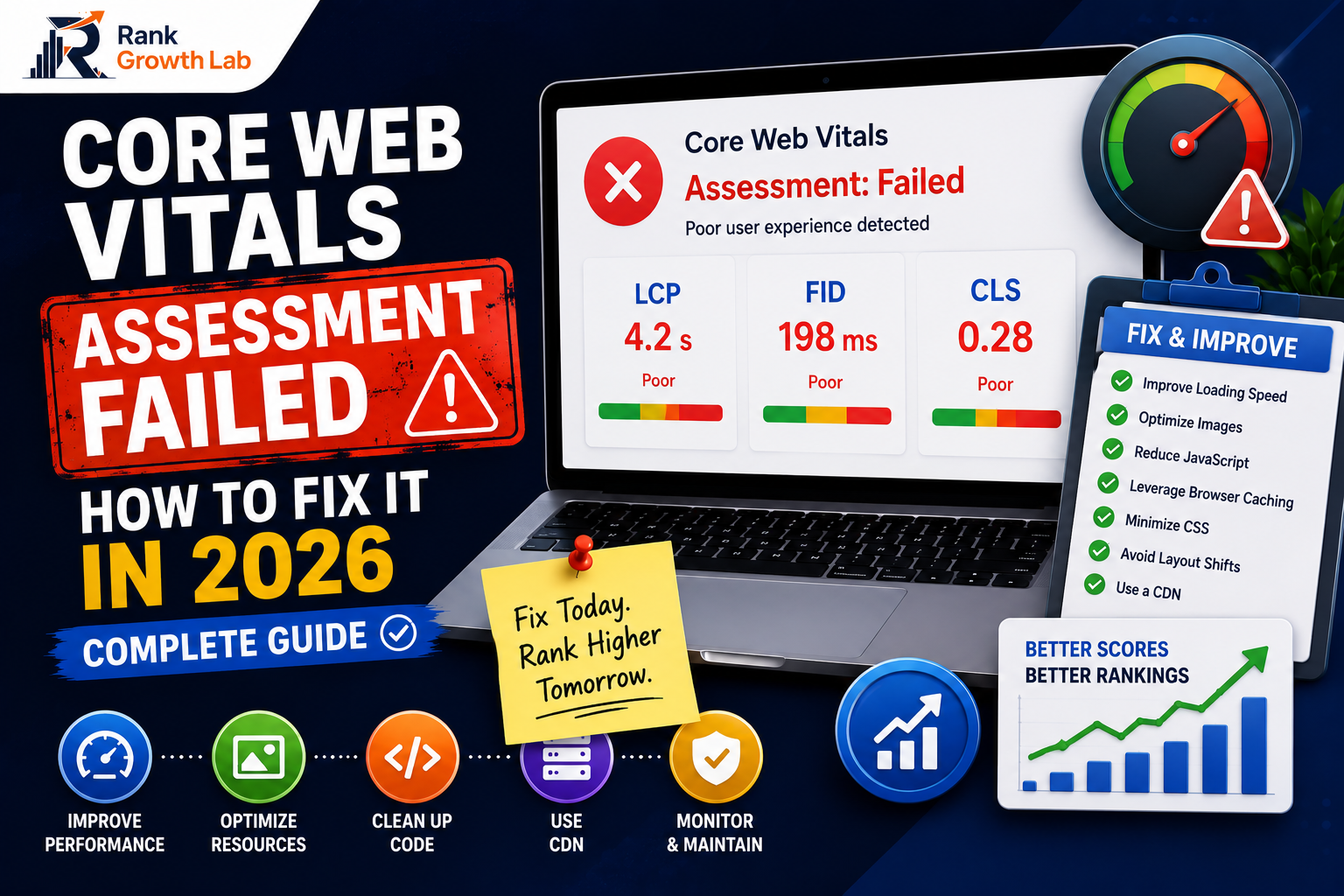
Core Web Vitals Assessment Failed: How to Fix It in 2026 (Complete Guide)
Google Search Console says your Core Web Vitals assessment failed. Your rankings are suffering because of it. This guide tells you exactly which metric is failing, why, and how to fix it — using free tools, with no developer required.
I opened Google Search Console one morning and saw it — a red “Failed” status on the Core Web Vitals report. After everything I had done to build the site correctly, one section was now showing pages that Google considered too slow to rank well. This guide documents exactly how I diagnosed which metric was failing and fixed it — and how you can do the same.
The “Core Web Vitals assessment failed” message in Google Search Console is not a vague warning. It is a specific, data-backed statement that real users visiting your site are experiencing performance below Google’s defined thresholds — and that your rankings are being penalised for it. The good news is that the report also tells you exactly which pages are failing and which metrics are responsible, which means you do not need to guess where to start.
This guide is structured to match how you should actually fix the problem: understand what failed, diagnose the specific cause on your site, apply the right fix for that specific cause, and validate that the fix worked. Skipping the diagnosis step and applying generic speed tips is why most sites spend weeks trying fixes that do not move their scores.
Google Search Console uses field data — real measurements from actual visitors using the Chrome browser. PageSpeed Insights shows both field data and lab data (simulated). Your Core Web Vitals assessment in Search Console is based on field data only. This means a site can show good PageSpeed Insights scores in lab mode but still fail the Search Console assessment because real-world conditions (slow mobile connections, older devices) produce worse results than the lab simulation.
What “Core Web Vitals Assessment Failed” Actually Means
When Google Search Console shows a “Failed” assessment for Core Web Vitals, it means at least one of three specific metrics — LCP, INP, or CLS — is in the “Poor” or “Needs Improvement” range for more than 25% of real visitor sessions on those pages.
The threshold is important: Google requires that 75% or more of all page loads must score “Good” across all three metrics simultaneously. This is a high bar. If 26% of your visitors experience a slow LCP, your entire page group fails — even if the other 74% had perfect scores.
One failed metric fails the whole assessment. You cannot pass by getting two metrics right if the third is poor. All three must be in the Good range for at least 75% of visits.
Before panicking: the assessment is based on field data collected over the previous 28 days. A site improvement you made last week will not show in Search Console for several more weeks. This is normal and expected — fix the issue, then wait 28-35 days for the data to reflect your changes.
Why Does Core Web Vitals Assessment Keep Failing? (The Real Reasons)
If you’ve already tried a fix and the assessment still shows “Failed” weeks later, the cause is almost always one of these five things — not a fundamental flaw in your site.
Run through this list before assuming a fix did not work. In most cases, the fix is working correctly but the data simply has not caught up yet, or a second hidden cause is still active alongside the one already fixed.
Core Web Vitals Update 2026: What Changed
Core Web Vitals are not static — Google periodically adjusts thresholds and occasionally swaps out which metrics are measured. Here is what is relevant for 2026 specifically.
The three metrics — LCP, INP, and CLS — remain the official Core Web Vitals for 2026, with the same thresholds described in this guide (LCP under 2.5s, INP under 200ms, CLS under 0.1). INP fully replaced the older FID (First Input Delay) metric back in March 2024, so if you see any guide still referencing FID, that information is outdated and INP is what actually matters now.
What has shifted is less about the metrics themselves and more about how strictly they are weighted alongside other page experience signals. Google has continued emphasising real-world mobile performance, since the majority of search traffic globally is mobile, and slower mobile networks make field data thresholds meaningfully harder to pass than lab data would suggest. For a site like a new WordPress blog, this means mobile Core Web Vitals deserve more attention than desktop — fix mobile first if you only have time to focus on one.
The other practical update worth knowing: Search Console’s Core Web Vitals report groups pages by URL pattern automatically, and that grouping logic has become more granular over time. This means fixing a template-level issue (see point 4 above) tends to resolve more grouped URLs at once than it used to, which is good news — one fix can clear an entire group rather than requiring page-by-page changes.
Step 1 — Diagnose Which Metric Is Failing
With the failing metric and cause identified, you can now apply the right fix rather than guessing. The three sections below cover every common failure mode for each metric — read the section for your specific failing metric.
How to Fix a Failed LCP Score
LCP measures how long it takes for the largest visible element on your page — typically the hero image, featured image, or main heading — to fully render. It is the most commonly failed Core Web Vital and the one that has the most straightforward fixes available.
The critical insight: 43% of failing LCP scores are caused by unoptimised images. Before applying any other fix, compress and convert your images to WebP format. This single change moves the majority of sites from failing to passing LCP.
Fix 1: Compress and convert all images to WebP
Fix 2: Add a caching plugin
Fix 3: Preload your LCP image
Fix 4: Use faster hosting
How to Fix a Failed INP Score
INP replaced First Input Delay (FID) as Google’s interactivity metric in March 2024. It measures the time between a user interacting with your page — clicking a button, tapping a link, opening a menu — and the browser visually responding to that interaction. 43% of websites still fail the 200ms threshold, making INP the most commonly failed Core Web Vital in 2026.
INP failures are almost always caused by too much JavaScript running on the main thread. When the browser’s main thread is busy processing JavaScript, it cannot respond to user interactions — creating the sluggishness that INP measures. The fix is reducing JavaScript load and execution time.
Fix 1: Remove or delay unnecessary plugins
Fix 2: Defer non-essential JavaScript
Fix 3: Reduce third-party scripts
Fix 4: Switch to a lightweight theme
How to Fix a Failed CLS Score
CLS measures visual stability — how much the page layout unexpectedly shifts while loading. You have experienced CLS when you go to click a button and the page jumps just as you tap it, sending you somewhere unintended. Google measures CLS as the sum of all unexpected layout shifts during a page’s lifecycle.
The most common cause of CLS failures is images, iframes, and ad units without explicitly defined dimensions. When the browser does not know how large an element will be before loading it, it renders the page without reserving space — then shifts everything when the element loads at its actual size.
Fix 1: Add width and height attributes to all images
Fix 2: Reserve space for ads and embeds
Fix 3: Avoid inserting content above existing content
Fix 4: Use font-display: swap for web fonts
How Long Until Google Search Console Shows Improvement?
This is the question everyone asks after applying fixes — and the answer requires patience. Google Search Console’s Core Web Vitals report uses a rolling 28-day window of real user data. After you fix an issue, the improvement in your data will take the following timeline:
- PageSpeed Insights improvement: Immediate — shows the moment your fix is deployed. This is lab data, not field data.
- CrUX data update (Chrome User Experience Report): 28 days minimum. This is the field data used by Search Console.
- Search Console status change (from Failed to Passed): 28-35 days after enough good data is collected.
- Ranking improvement visibility: 4-8 weeks after status changes to Good in Search Console.
Do not re-apply fixes or make additional changes while waiting for the 28-day window to pass. If you keep changing things, you reset the data window and cannot confirm whether your original fix worked. Apply the fix, verify it in PageSpeed Insights lab data, then wait for Search Console field data to catch up.
After 28 days, use URL Inspection in Search Console → request re-indexing → this signals to Google to re-evaluate your page’s Core Web Vitals assessment with fresh data.
How to Validate Your Fix Before Waiting 28 Days
You do not have to wait 28 days to know whether your fix worked — you just have to use the right tool. PageSpeed Insights (pagespeed.web.dev) shows lab data that updates immediately. After applying any fix, run the same URL through PageSpeed Insights and confirm the relevant metric has improved:
Screenshot or note your current LCP, INP, and CLS scores. This is your baseline. Without this baseline, you cannot confirm whether a fix worked.
Apply one change — compress images, install caching, or add image dimensions — then re-test in PageSpeed Insights. Applying multiple changes simultaneously makes it impossible to know which fix produced the improvement.
The relevant metric should show improvement in PageSpeed Insights lab data. If compressing images improves LCP from 4.2s to 1.8s in lab data, your fix worked — the field data in Search Console will catch up over the next 28 days.
Go to Search Console → URL Inspection → paste your fixed page URL → Request Indexing. This signals Google to re-crawl the page and begin collecting fresh field data. Check the Core Web Vitals report in 30-35 days for the status update.
The Complete Core Web Vitals Fix Checklist
What to Do Right Now
Step 1 — Go to Search Console right now. Open Experience → Core Web Vitals → click your failing page group. Note which metric is failing. This takes two minutes and tells you exactly which section of this guide to focus on.
Step 2 — Run PageSpeed Insights on your homepage. Go to pagespeed.web.dev, test your homepage on mobile, and screenshot your current scores. The Opportunities section lists the exact changes that will produce the biggest improvement on your specific site.
Step 3 — Apply the highest-impact fix first. For most WordPress sites this is image compression — install Smush, run the bulk optimiser, and re-test. If your LCP improves significantly in PageSpeed Insights lab data, you have found your primary issue.
For a complete technical SEO audit including Core Web Vitals, use the free SEO analyzer — it checks multiple technical factors automatically and flags issues worth fixing. And for the complete explanation of what each Core Web Vital measures and why it affects your rankings, see our Core Web Vitals guide.
A failing Core Web Vitals assessment is not a permanent condition — it is a solvable problem with specific, documented fixes. Every site that passes today was once failing. The difference is methodical diagnosis followed by targeted fixes, not generic speed tips applied in the hope that something sticks.
Frequently Asked Questions
Common questions about fixing Core Web Vitals assessment failed in Google Search Console.
Yes — Core Web Vitals are a confirmed Google ranking signal. However, they are one signal among many. A page with excellent content and strong backlinks will still rank above a page with faster Core Web Vitals but weaker content. Google uses CWV as a tiebreaker between pages of similar quality — and as an absolute floor for page experience. Sites that pass all three thresholds see measurably lower bounce rates and longer dwell times, which produces compounding ranking benefits beyond the direct CWV signal itself.
PageSpeed Insights shows both lab data (simulated) and field data (real user measurements). Google Search Console’s Core Web Vitals assessment uses only field data from real Chrome users. Lab data simulates ideal conditions — a fast connection, a modern device, no other tabs open. Real users visit on slow mobile connections, older phones, and congested networks. This produces significantly worse scores in field data than lab data. A PageSpeed score of 90 in lab mode can still produce failing Core Web Vitals in Search Console if real users are predominantly on slow mobile connections.
Google Search Console Core Web Vitals reports update based on a rolling 28-day window of real user data. After applying a fix, you will start to see improvement in the Search Console data after approximately 28-35 days. Improvement happens gradually — as more of your fixed-site visits replace older failing-site visits in the 28-day window. You can verify your fix worked immediately using PageSpeed Insights lab data, but Search Console field data takes the full 28-day cycle to reflect significant changes.
For most WordPress sites — yes, completely. The most impactful fixes (image compression, caching, plugin audit, and image dimension attributes) require no code and no technical knowledge beyond installing free plugins and running their built-in tools. The fixes that require developer help are advanced JavaScript optimisation, custom server configuration, and theme-level code changes. Most sites can move from failing to passing Core Web Vitals using only the plugin-based fixes described in this guide — especially for LCP and CLS failures.
Fix whichever metric is causing your assessment to fail — since all three must pass simultaneously, fixing two while one remains poor still produces a failed assessment. If all three are failing, prioritise LCP first because it has the most straightforward fixes (image compression and caching) that typically produce the biggest score improvements in the shortest time. CLS is usually the easiest to fix (adding image dimensions) and should be addressed second. INP is the most complex to fully resolve but is often partially improved by the plugin audit and JavaScript deferral steps taken to improve LCP.
This is almost always one of five things: not enough of the 28-day field data window has passed yet, the fix targeted the wrong metric (check which of LCP, INP, or CLS is actually failing), a caching plugin is still serving old unoptimised pages to visitors, the real cause lives in a shared template affecting many pages at once, or you are checking desktop when the failure is on mobile (they are tracked as separate reports). Work through these five causes in order before assuming the fix itself did not work.